
Event Display Kiosk
Introduction
Section titled “Introduction”The Event Display Kiosk Project is intended to primarily provide a method for members and guests to easily lookup class and event information at Dallas Makerspace.
The system will be open source and will use off the shelf components as much as possible. Expected cost is approximately $350 for the big screen and $160 for the small screen version.
Requirements
Section titled “Requirements”Software
Section titled “Software”- Rotate display 90 degrees
- Start browser in kiosk mode on Event Calendar page
- Find and install touchscreen driver for Acer T232HL
- appears to have buggy USB 3.0 VIA hub chipset
- no software fix found, used USB v1.1 hub instead
- Possibly get Event Calendar custom webpage
Hardware
Section titled “Hardware”- Raspberry Pi 3B+
- Large Touchscreen display
- Small Touchscreen display
- USB1.1 hub for buggy Acer touchscreen
- Network connectivity to the DMS network (WiFi)
- Case to protect device from dust and tampering
Completed Steps
Section titled “Completed Steps”Software
Section titled “Software”- Setup Raspbian Stretch on microSD card
- https://www.raspberrypi.org/downloads/raspbian/ Current Raspbian image file
- https://rufus.akeo.ie/ Rufus is my favorite image/ISO USB/SD/microSD writer
- Use the 2019-09-26-raspbian-buster.img file (Buster 10).
- Update Raspbian to latest version
sudo apt update -y && sudo apt upgrade -y && sudo apt dist-upgrade -y && sudo apt autoremove -y- Startup Acer touchscreen in 1080x1920 mode
- Startup RPi 7” touchscreen in 800 x 480 mode
- Rotate display 90 degrees
- sudo nano /boot/config.txt
... hdmi_force_hotplug=1 hdmi_group=2 hdmi_mode=1 # Following 3 lines for 1080x1920 Portrait mode 23" screen hdmi_mode=82 hdmi_cvt=1920 1080 60 6 0 0 0 display_hdmi_rotate=1 # Following 3 lines for 480x800 Portrait mode 7" screen #hdmi_mode=87 #hdmi_cvt=800 480 60 6 0 0 0 #display_rotate=1- Disable WiFi and BlueTooth when running on Ethernet
- sudo nano /boot/config.txt
... # Disable WiFi and BlueTooth dtoverlay=pi3-disable-wifi dtoverlay=pi3-disable-bt- Startup Chromium in incognito and kiosk mode
- Run rotate script to get the touchscreen to work
- sudo mkdir /home/pi/.config/lxsession
- sudo mkdir /home/pi/.config/lxsession/LXDE-pi
- sudo nano /home/pi/.config/lxsession/LXDE-pi/autostart
@lxpanel --profile LXDE-pi @pcmanfm --desktop --profile LXDE-pi # @xscreensaver -no-splash #commented to disable screensaver @point-rpi @xset s off @xset -dpms @xset s noblank @/home/pi/rotate_desktop.sh right @chromium-browser --no-first-run --disable --disable-translate --disable-infobars --disable-suggestions-service --disable-save-password-bubble --start-maximized --incognito --kiosk https://calendar.dallasmakerspace.org/ & # load chromium after boot and point to the Events Calendar webpage in full screen mode- Create script to kill and restart the browser
- sudo nano /home/pi/restart_browser.sh
#!/bin/bash export DISPLAY=:0 pkill chromium chromium-browser --no-first-run --disable --disable-translate --disable-infobars --disable-suggestions-service --disable-save-password-bubble --start-maximized --incognito --kiosk https://calendar.dallasmakerspace.org/ &- Make the touchscreen rotate 90 degrees right
- sudo nano /home/pi/rotate_desktop.sh
#!/bin/bash # # Rotates modern Linux desktop screen and input devices to match. Handy for # convertible notebooks. Call this script from panel launchers, keyboard # shortcuts, or touch gesture bindings (xSwipe, touchegg, etc.). # # Using transformation matrix bits taken from: # https://wiki.ubuntu.com/X/InputCoordinateTransformation # # Configure these to match your hardware (names taken from `xinput` output). TOUCHSCREEN='Weida Hi-Tech CoolTouchR System ' #TOUCHSCREEN='FT5406 memory based driver' if [ -z "$1" ]; then echo "Missing orientation." echo "Usage: $0 [normal|inverted|left|right] [revert_seconds]" echo exit 1 fi function do_rotate { TRANSFORM='Coordinate Transformation Matrix' case "$2" in normal) [ ! -z "$TOUCHSCREEN" ] && xinput set-prop "$TOUCHSCREEN" "$TRANSFORM" 1 0 0 0 1 0 0 0 1 ;; inverted) [ ! -z "$TOUCHSCREEN" ] && xinput set-prop "$TOUCHSCREEN" "$TRANSFORM" -1 0 1 0 -1 1 0 0 1 ;; left) [ ! -z "$TOUCHSCREEN" ] && xinput set-prop "$TOUCHSCREEN" "$TRANSFORM" 0 -1 1 1 0 0 0 0 1 ;; right) [ ! -z "$TOUCHSCREEN" ] && xinput set-prop "$TOUCHSCREEN" "$TRANSFORM" 0 1 0 -1 0 1 0 0 1 ;; esac } XDISPLAY=`xrandr --current | grep default | sed -e 's/ .*//g'` XROT=`xrandr --current --verbose | grep default | egrep -o ' (normal|left|inverted|right) '` do_rotate $XDISPLAY $1 if [ ! -z "$2" ]; then sleep $2 do_rotate $XDISPLAY $XROT exit 0 fi- Script to adjust 7” touchscreen brightness
- sudo nano /home/pi/screen_brightness.sh
   #!/bin/bash   level=$1   #echo "level given is $level"
   if [ $# != 1 ]; then   echo "USAGE: $0 brightness_level (0 to 255)"   exit 1   fi
if $level -ge 0 && $level -le 255 ; then #echo "level given is $level" echo $level > /sys/class/backlight/rpi_backlight/brightness echo "Screen brightness set to $level." exit 0 else echo "Brightness level $level is out of range! (0 to 255 only)" exit 1 fi- Setup crontab to run /home/pi/restart_browser.sh every 15 minutes
- crontab -e
0,15,30,45 * * * * /home/pi/restart_browser.sh- Fix ownership and executable settings
- sudo chown root.pi /sys/class/backlight/rpi_backlight/brightness
- sudo chmod 0664 /sys/class/backlight/rpi_backlight/brightness
- sudo chown pi:pi *.sh
- chmod +x *.sh
- Reboot RPi3
- sudo reboot
Hardware
Section titled “Hardware”- Raspberry Pi 3 for HDMI, USB, and WiFi ($35)
- Acer T232HL 23” 1920 x 1080 LCD Touchscreen ($289)
- After enabling Fast Charge on the OSM, the Acer USB ports can power the RPi3.
- Connect it to one the two “normal” USB ports, not the USB dedicated charging port
- Discovered that the built in USB 3.0 hub has buggy firmware, RPi3 doesn’t recognize touchscreen
- Need USB 1.1 hub to bypass buggy USB 3.0 VIA chipset firmware in Acer Touchscreen ($18)
- Case for RPi3 ($10)
- Short HDMI cable ($4)
- Short USB A to USB Micro B cable to power RPi3 ($4)
- Short USB A 3.0 to USB B 3.0 for touchscreen connection ($7)
Status
Section titled “Status”- 06/19/2018 - Large version installed in main hall, needs box, touchscreen fix and wire hiding
- 06/21/2018 - Touchscreen fixed with USB 1.1 hub, still needs box and wire hiding
- 06/24/2018 - Small versions installed at classrooms, needs PoE wiring run to each station.
- 07/28/2018 - PoE run to two of 8 stations.
- 07/30/2018 - Fix for 7” touch screen brightness.
- 07/31/2018 - Second large version installed in back hall. Needs box and wire hiding.
Photos
Section titled “Photos”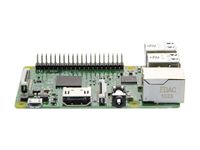
Project members
Section titled “Project members”- Stan Simmons
Resources
Section titled “Resources”- http://www.microcenter.com/product/460968/Raspberry_Pi_3_Model_B RPi3B+ ~$35
- https://smile.amazon.com/gp/product/B007XZL7PC 16GB microSD card ~$9
- https://smile.amazon.com/dp/B01F1PSFY6 RPi Official case ~$7
- https://smile.amazon.com/gp/product/B00I2P6TEG Acer T232HL 23” Touchscreen ~$290
- https://smile.amazon.com/gp/product/B000S52W94 Belkin USB 1.1 4-Port Hub F5U045 ~$18
- https://smile.amazon.com/gp/product/B00558ORME VESA Wall Mount ~$10
- https://smile.amazon.com/gp/product/B0153R2A9I 7” RPi Touchscreen ~$70
- https://smile.amazon.com/gp/product/B01HV97F64 SmartiPi Case ~$28
- https://smile.amazon.com/gp/product/B01MDLUSE7 PoE RPi Adapter ~$11
- https://www.raspberrypi.org/
- https://www.raspberrypi.org/forums/
Migrated from the legacy DMS wiki: original page