
Python AMS Print Process
New Python AMS Printing process.
These instructions are for printing process for building a new Python AMS for Bambu X1C from Printables. Utilize the below instructions for pulling down the files and tracking printed part status. The files and tracking will be utilizing Dallas Makerspace Jira. Below instructions will guild you through the process.
If you wish to see photos of the individuals parts you can use the Printables link https://www.printables.com/model/682607-python-ams-ultimate-bambu-lab-ams
- Filament, Printer usage and general pre file download process
- Only use DMS orange ABS filament. There is one above the cabinets in or on the bin that will be used to house the completed parts.
-
- Only print the parts on one of the three Bambu enclosed bambu printers (ABS requires enclosures).
- There are tires for the polymaker cardboard ABS spools. If/when we complete an ABS spool move the tires to another ABS Spool. Note if filament is low load two ABS spools and start with lowest and bambu should pick up on the next full spool.
- Downloading Files
- Go to the DMS Jira board setup for this printing project by clicking the link below.
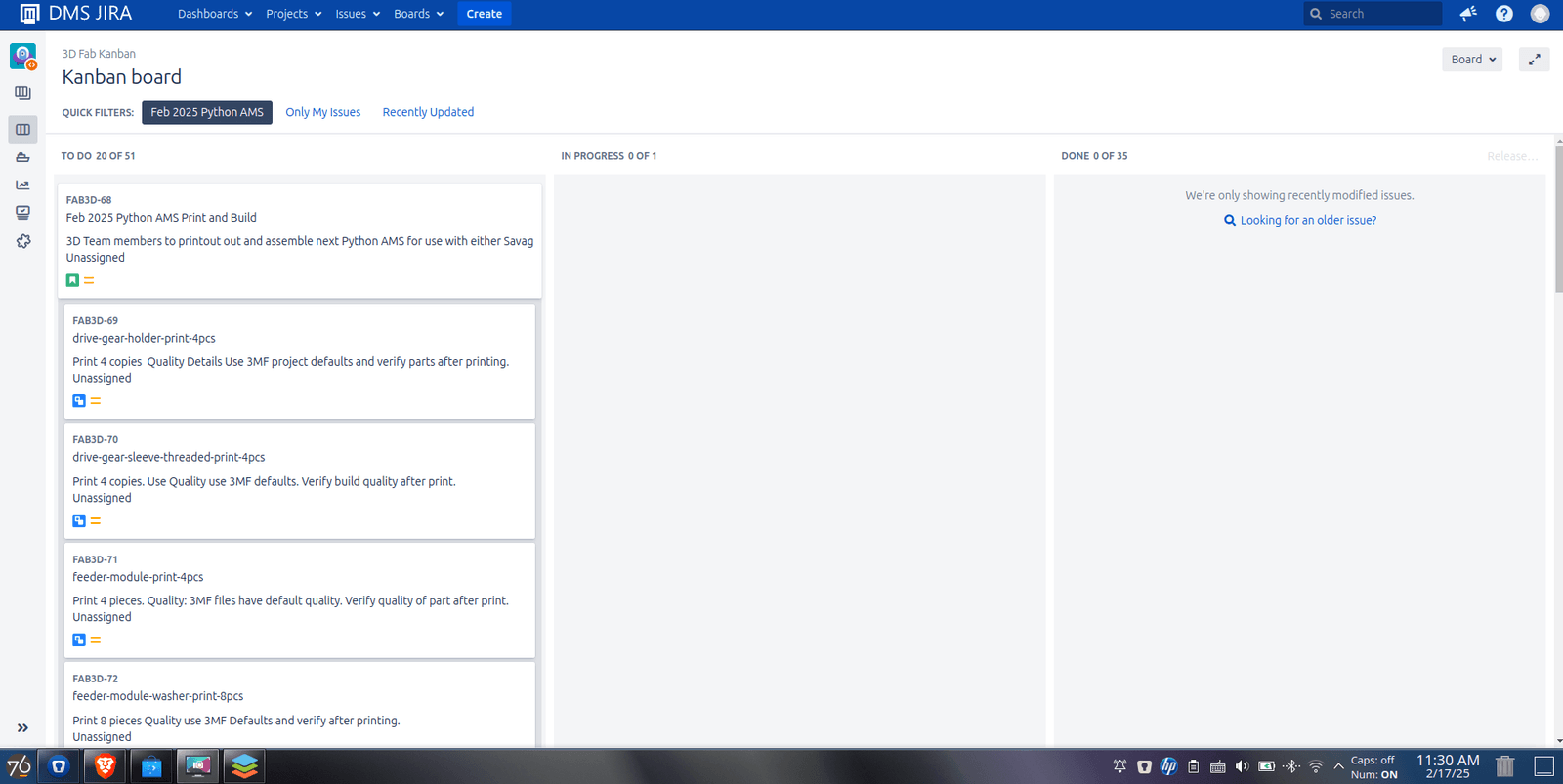
- You should see the following three column board.
-
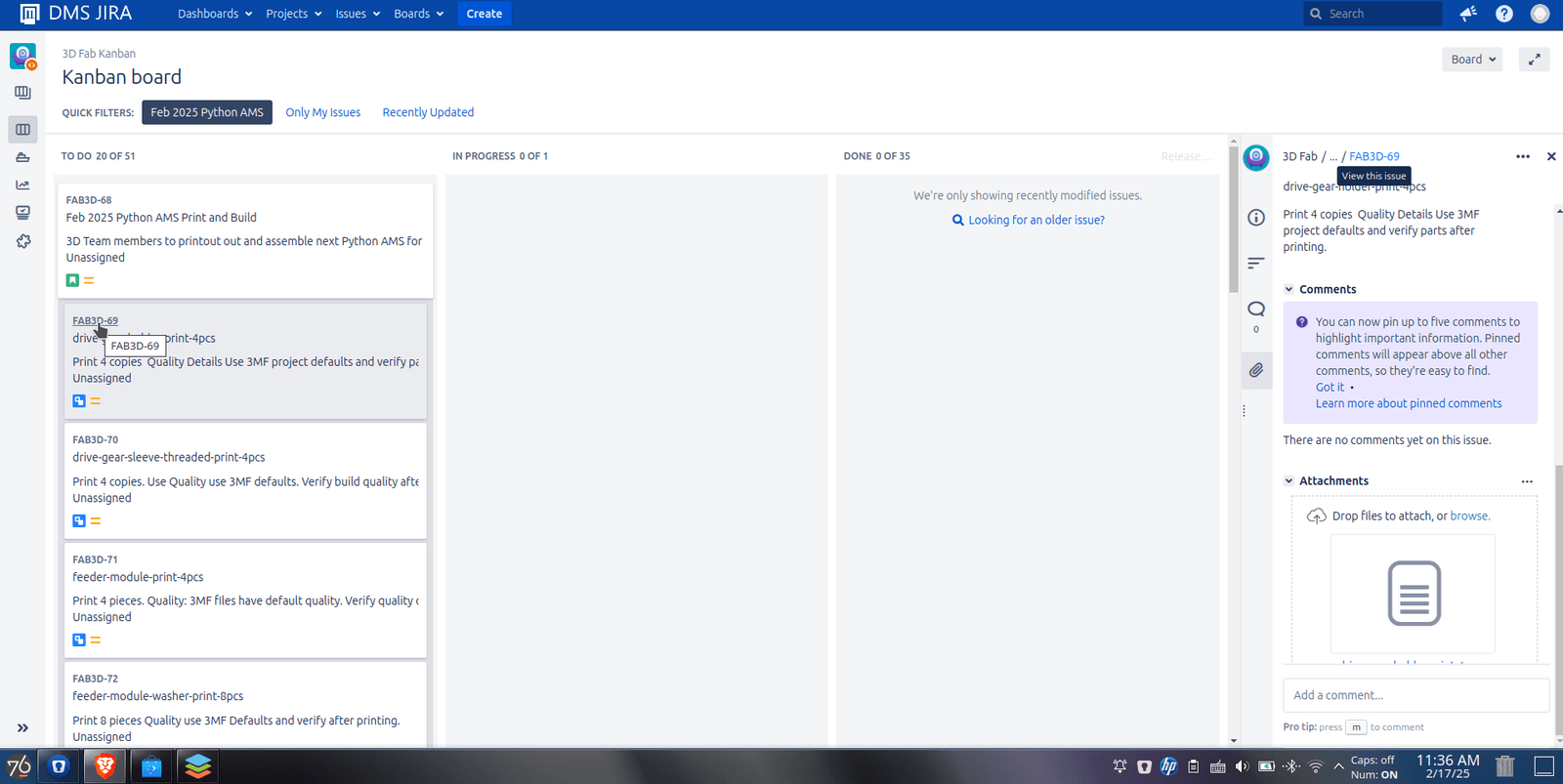
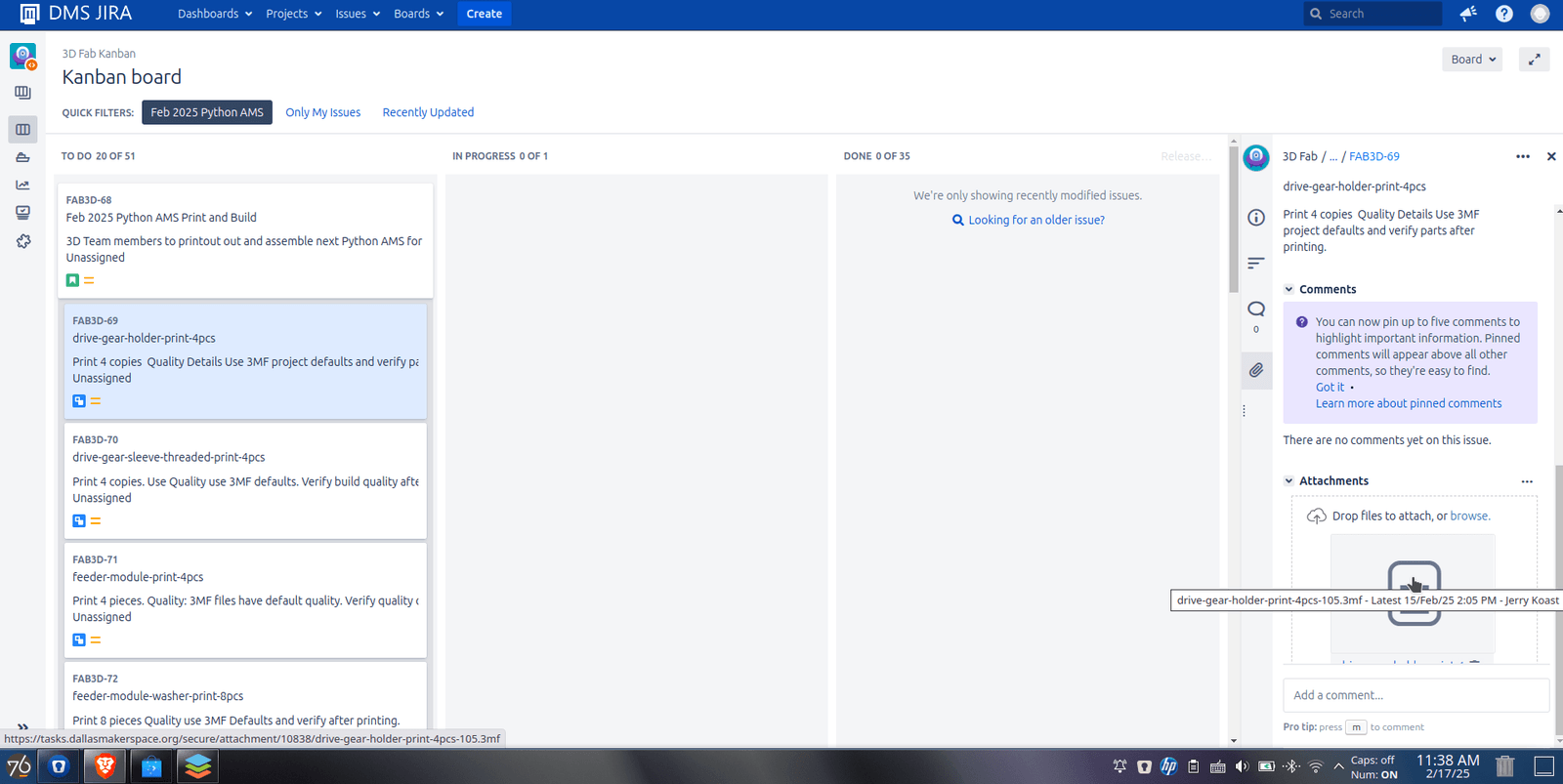
- Click on a task under the TO DO Column as shown in photo2. This will bring up the details on the right hand of the screen. Scroll all they way down on the right hand and you will see attachments. Click on attachments (Photo Below) to download the file. Note depending on screen size you may not see the file name until you hover over it.
-
- Save it locally.
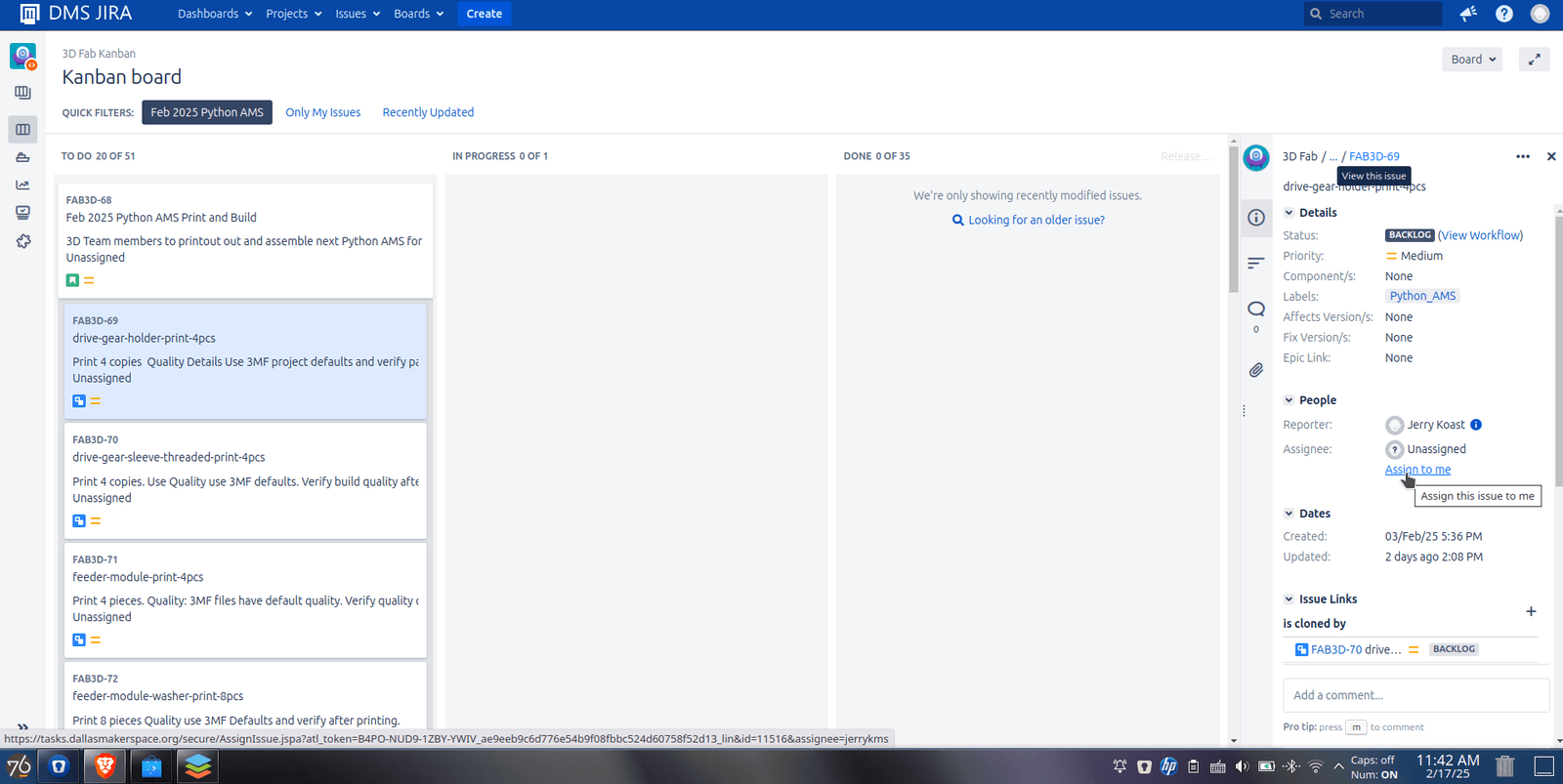
- Click on assign to me in Jira and update to your DMS name.
-
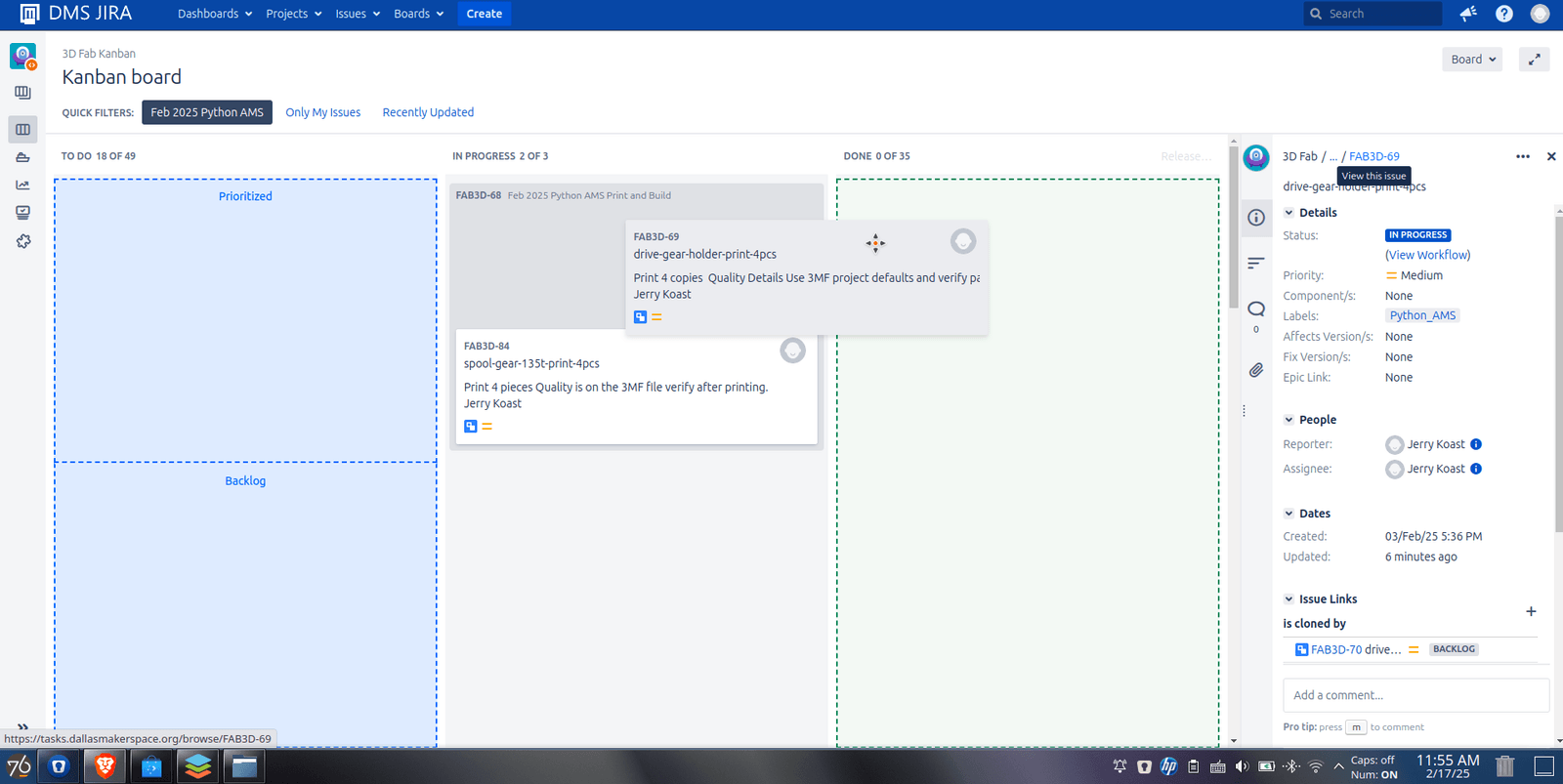
- Show task in progress by dragging and dropping to in progress.
-
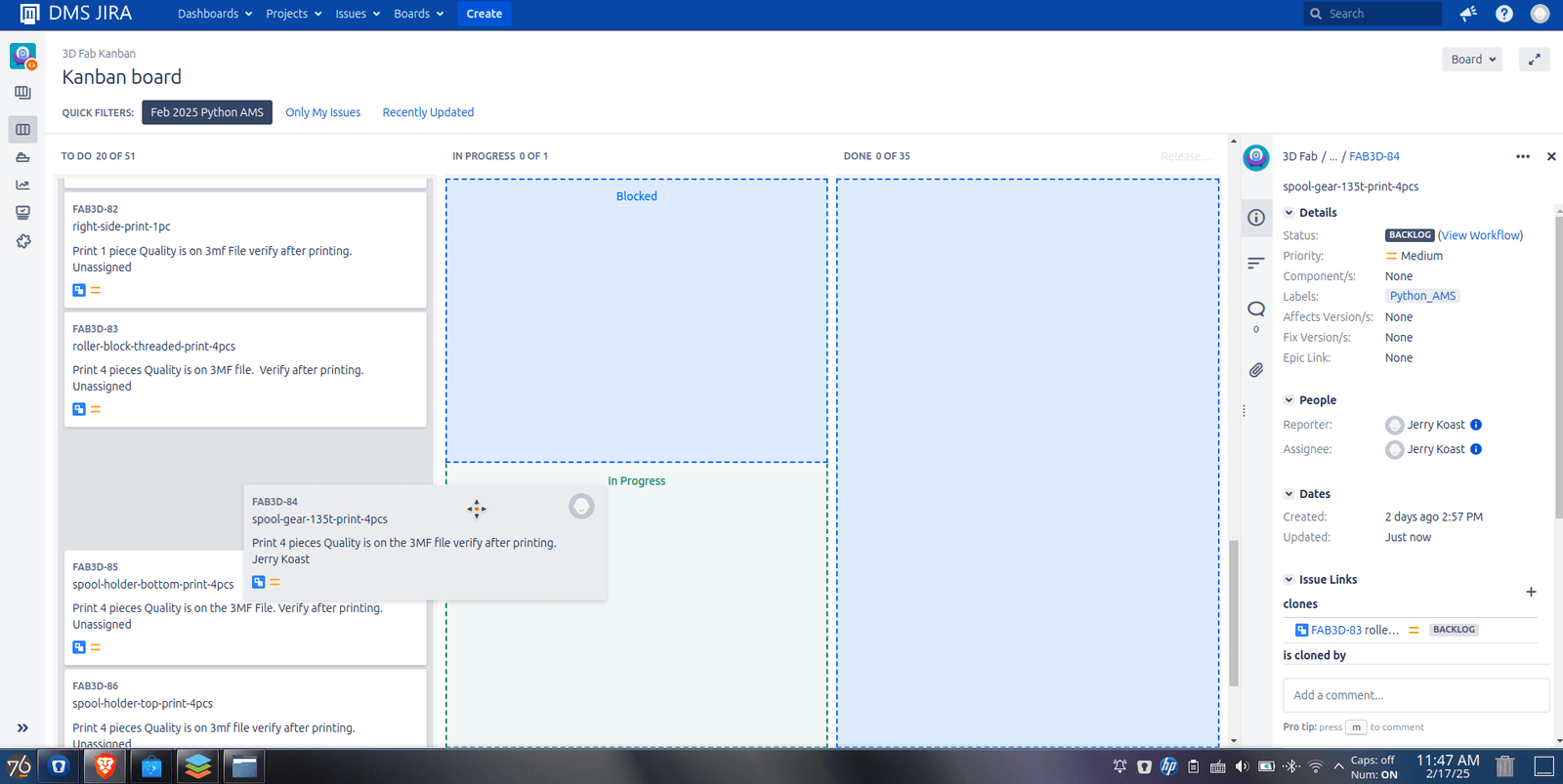
- Printing
- Open Bambu studios and bring in file via open project/import
- The files are all .3mf so should have the strenght settings that the person/persons that created the files intended this to be printed at.
- The task name and file name have the number of parts to print.
- Example: spool-holder-bottom-print-4pcs means print 4 pieces.
- Put DMS Project and your phone number and time started on the white tape.
- Once printing is completed check quality and reprint if any defects and throw bad quality part into ABS Recycling.
- Open Bambu studios and bring in file via open project/import
- Printed successful
- Place the part(s) and the filament in the plastic container above the maintenance cabinet
- In jira click on the task for what you just printed and move the task to done
-
- FAQ
- What if I only have time to print some of the parts IE 2 of 4 and have to leave?
- In Jira add a comment with the number of completed and if you will return to finish later or if you wish someone else to finish.
- IE I printed 2 of 4. Someone else can finish
- IE I printed 2 of 4 and will be back later today to finish.
-
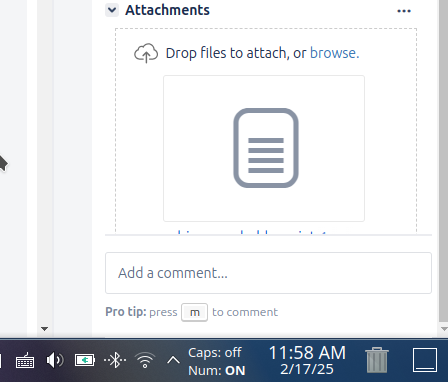
- In Jira add a comment with the number of completed and if you will return to finish later or if you wish someone else to finish.
- Do I need to change the infill, strength etc?
- The files are .3mf and should have any Bambu settings that the designer used in crating their model.
- Why is tracking in Jira important?
- So there is a central place for print files and we can track what was printed, what is in progress /partially finished.
- If I am printing a DMS project that that count agains my printers in use?
- NO in general this does not count. However please be respectful of others printing / wanting to print.
- What if I only have time to print some of the parts IE 2 of 4 and have to leave?
Migrated from the DMS Confluence: original page